

Immediate reality check: why this matters
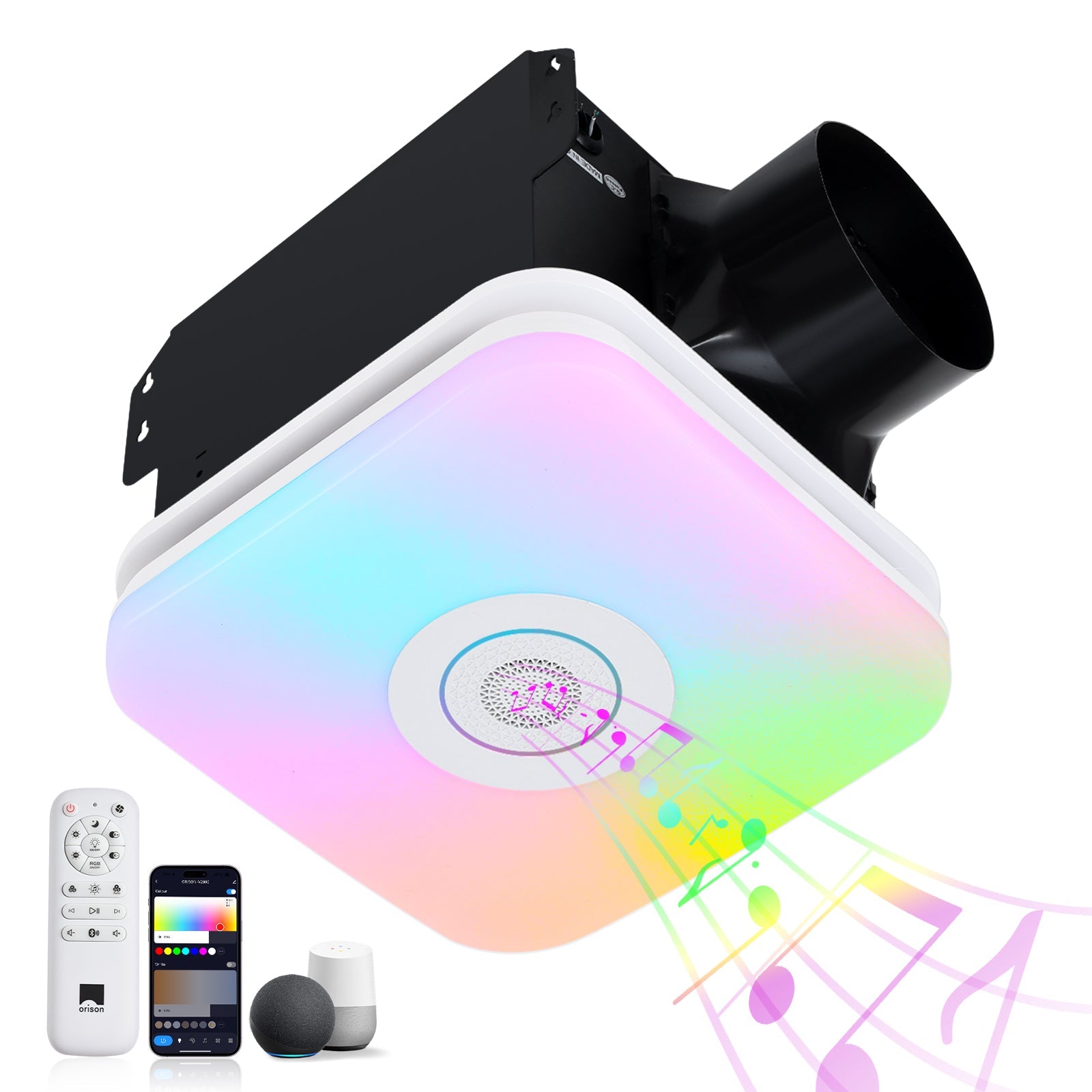
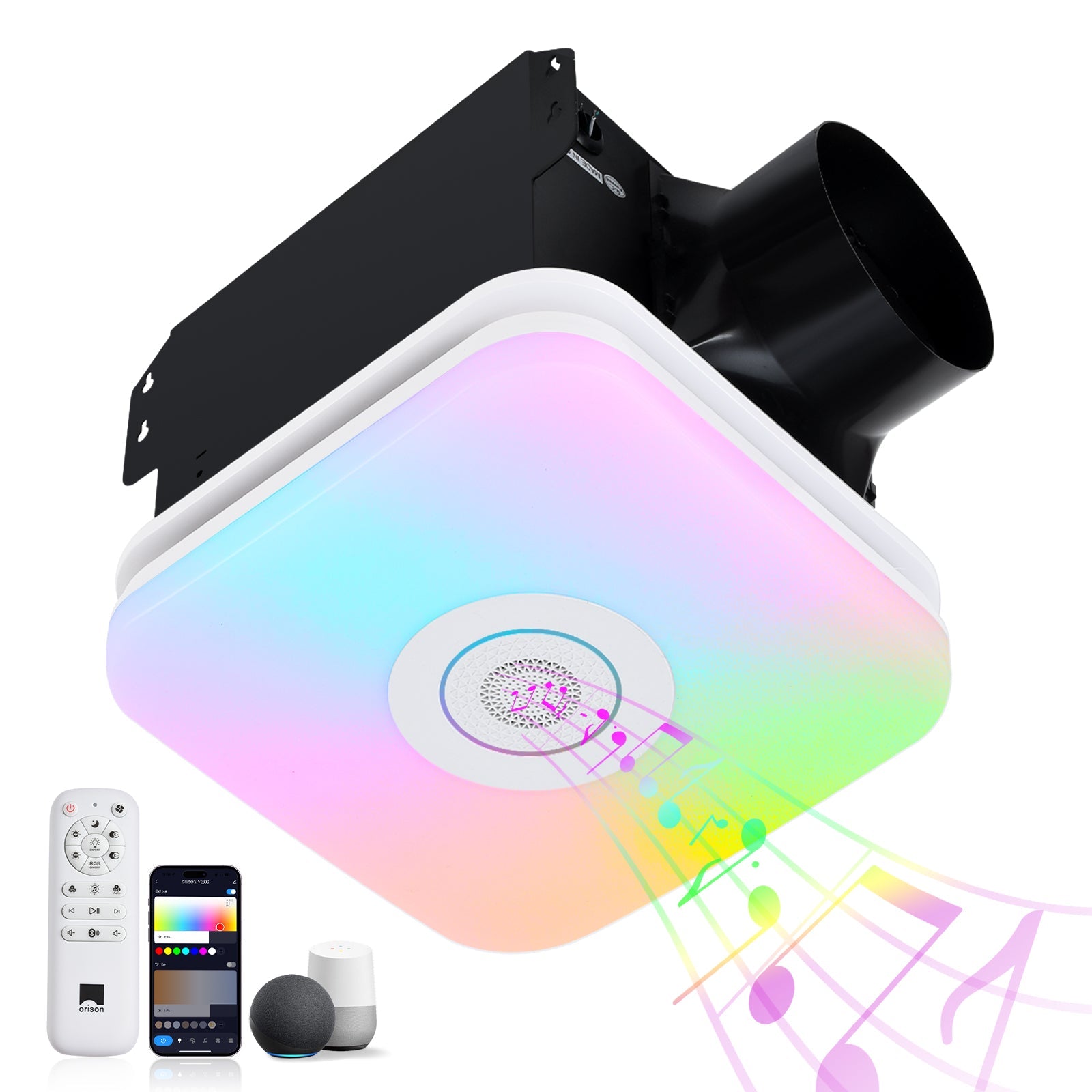
Smart ceiling fans look great and save energy, but when the lights or fan speed stumble, they stop being helpful. This guide focuses on the common, fixable problems that cause connectivity dropouts and slow or erratic remote responses in large living-room ceiling fans with integrated lights. If you manage multiple devices—say a smart thermostat, a smart bulb, or even a bathroom exhaust fan—those devices can interact, and the fixes are often systematic rather than mysterious. Read on for a practical triage you can run in an evening, and the targeted repairs that follow.
Symptoms to record before you start
Document what’s actually happening so you can test fixes methodically. Typical symptoms include:
- Slow response from the remote: press a button and the fan or light reacts after 1–5 seconds.
- Intermittent control via app: commands fail sometimes but work after retrying.
- Device drops from the hub or Wi‑Fi network completely.
- Lights dim unexpectedly when fan speed changes (or vice versa).
Keep a simple log of time, symptom, and whether power cycles or re-pairing helped.
Quick triage checklist — do these first
Before opening the canopy, cycle through these practical checks in order:
- Power: confirm the circuit and wall switch deliver steady voltage. Use a multimeter or test another load on the same switch.
- Remote batteries: replace batteries with fresh cells and retry the RF/IR remote.
- App and hub: restart the Wi‑Fi router and any Zigbee/Z‑Wave hub. Note whether the fan reconnects to the 2.4 GHz band (many devices need 2.4 GHz).
- Firmware: check for firmware updates for the fan module and the hub/app.
- Distance and interference: move your phone or hub closer for a test—concrete walls, large metal fixtures, or nearby motors (like HVAC) can weaken the signal.
Root causes and targeted fixes
Connectivity and lag usually come from three buckets: network, remote protocol, or hardware. Tackle them in that order for fastest wins.
- Network issues — if the fan uses Wi‑Fi, make sure it’s on 2.4 GHz and not blocked by a mesh node set to client isolation. Fix: assign a stable IP (DHCP reservation) and reduce competing load on the router.
- Protocol mismatch — RF remotes (433/315 MHz), IR remotes, Zigbee, Z‑Wave, and Wi‑Fi each behave differently. Fix: confirm the fan’s radio matches the remote hub; if it’s Zigbee but your hub is using an older profile, update or use a compatible bridge.
- Hardware or power conditioning — dimmer-style wall controls or shared neutral wiring can cause weird behavior. Fix: replace incompatible dimmers with fan-rated controls or install a line filter. Also check the motor controller and capacitor if the fan stutters mechanically.
When the fan shares the house with other motors — a real-world note
In one Seattle condo I worked on, adding a high-capacity bathroom extractor fan nearby introduced electrical noise and slightly altered the neutral return on a shared circuit. The smart ceiling fan began dropping from the hub at peak times. Replacing the extractor’s noisy motor and adding a dedicated neutral run resolved the issue—so sometimes the answer sits in adjacent equipment. —
Hardware checks you can do safely
If the quick triage didn’t help, inspect the fan hardware carefully (power off at the breaker first). Look for loose terminal screws, burned wiring insulation, or a failing capacitor that makes the motor hesitate. If you’re comfortable, check the motor controller board for swollen capacitors or charred traces. If anything looks compromised, replace the controller module or call a licensed electrician—don’t risk an unsafe repair.
Software, pairing, and hub etiquette
Many lags come from poor pairing or competing hubs. When re-pairing, remove the fan from any previous hub first and factory-reset the device per the manufacturer’s instructions. Avoid simultaneous pairing attempts from multiple phones. For Wi‑Fi fans, ensure your router’s QoS isn’t deprioritizing device traffic; for Zigbee/Z‑Wave, move the hub closer while pairing to improve signal strength.
Common mistakes to avoid
People often compound problems by doing one of these:
- Mistaking slow app UI for device lag—test with the physical remote to isolate where latency sits.
- Mixing 2.4 GHz and 5 GHz during setup—many IoT modules only support 2.4 GHz.
- Using standard dimmers with smart fans—fan-rated controls or bypass modules are required for electronic controllers.
Alternatives and mitigation strategies
If persistent issues remain, consider these alternative approaches:
- Switching to an RF remote or a local RF hub to avoid Wi‑Fi variability.
- Adding a dedicated smart fan controller (in-canopy module) designed for large fans and higher CFM loads.
- Segregating critical devices onto a separate SSID or VLAN to reduce packet loss and congestion.
Advisory — three golden rules before you commit
1) Measure reliability, not specs: track real-world connect/drop rates over 48–72 hours before judging performance. 2) Match protocols: choose controllers and remotes that share the same radio profile (Wi‑Fi vs Zigbee vs RF) and confirm hub compatibility. 3) Account for electrical context: verify wiring, neutral continuity, and nearby motors—electrical noise and shared circuits are silent killers of smart-device reliability.
Follow these rules and you’ll convert guesswork into predictable outcomes; when hardware or persistent interference remains, a targeted replacement or a professional electrician is the right next step. For integrated solutions that consider both performance and installation realities, Orison often fits naturally into the conversation — practical, reliable, and designed for real homes. —
